

How to Register a Workday Developer App and Get OAUTH2/ SOAP Credentials
November 10, 2025
How to Register and Get OAUTH2 Credentials for Workday:
You will need 3 endpoints (URLs):
- REST API Endpoint
- Token Endpoint
- Authorization Endpoint
You will also need:
- Client ID
- Client Secret
How to setup Client ID
- Log in to the Workday application
- Register API Client: Navigate to the "Register API Client" section
- Select the Register API Client form
- Select the Register API Client form
- For the grant type, select "Authorization Code Grant'
- For the access token type, select "Bearer'
- In the Redirection URI field, enter
https://api.unified.to/oauth/code - In the Scope section, add Staffing and/or Recruiting, depending on your application's needs
- Select "Non-expiring Refresh Tokens'
- Select the Include Workday Owned Scope checkbox.
Click OK to save the app.
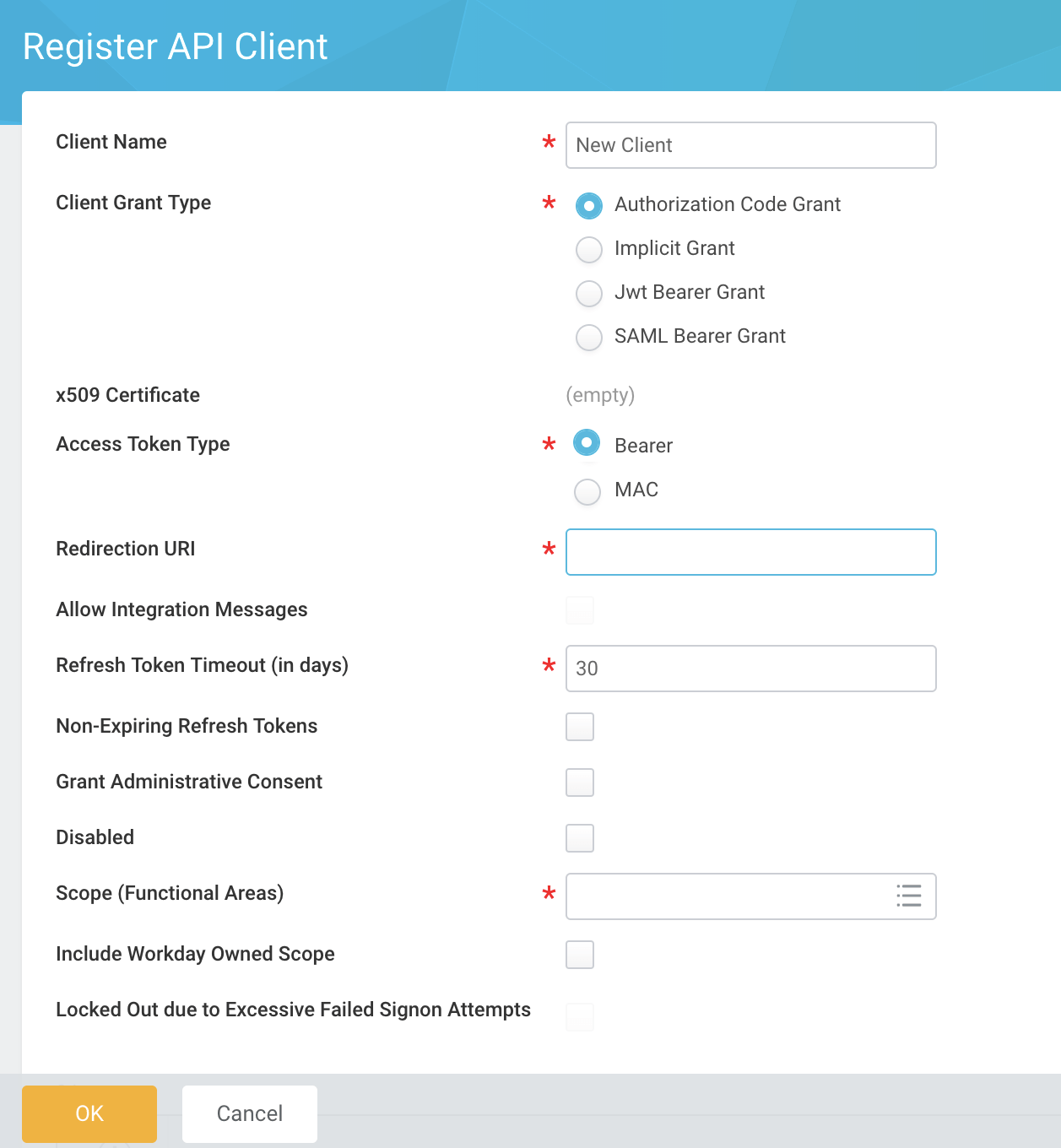
Once you create your application, Workday will display the information that you entered plus additional information.
Retrieve Endpoints
- Access "View API Clients"
- Use the Workday search bar to navigate to "View API clients"
- Retrieve REST API Endpoint, Token Endpoint, Authorization Endpoint
How to Connect Workday (Legacy) — SOAP Web Services with an Integration System User
Workday (Legacy) connects to Workday Web Services (SOAP) with an Integration System User (ISU). There is no OAuth app to register. You will enter 4 values when connecting:
| Field | What to enter | Example |
|---|---|---|
| Workday Host | Host name only — no https://, no path | wd2-impl-services1.workday.com (sandbox) or wd5-services1.myworkday.com (production) |
| Tenant Name | Your tenant id from the WSDL URL | acmecorp_preview |
| ISU Username | The ISU username only — do not add @tenant (Unified adds it) | INT_unified |
| ISU Password | The ISU password |
⚠️ The older setup asked for a "WSDL URL". It now asks for Workday Host and Tenant Name separately. If you are connecting through the API, do not send an
api_url— just the 4 values above.
Step 1 — Find your Workday Host and Tenant Name
- In Workday, search Public Web Services and open the report.
- Hover over Human Resources, click the related-actions menu (…) → Web Service → View WSDL.
- Scroll to the bottom of the WSDL. The endpoint looks like
https://<HOST>/ccx/service/<TENANT>/Human_Resources/v46.1. - Workday Host =
<HOST>(e.g.wd2-impl-services1.workday.com). Tenant Name =<TENANT>(e.g.acmecorp_preview).
Sandbox / implementation tenants usually have a host with impl in it; production tenants usually do not. Use the host and tenant of the tenant you want to connect.
Step 2 — Create the Integration System User (ISU)
- Search Create Integration System User.
- Enter a User Name (e.g.
INT_unified) and a strong Password. - Leave Require New Password at Next Sign In unchecked.
- Set Session Timeout Minutes to
0. - Check Do Not Allow UI Sessions.
- Click OK.
Make sure the ISU password does not expire (exclude the ISU from password-expiry rules, e.g. with Maintain Password Rules). An expired password makes every call fail with "invalid username or password".
Step 3 — Create a security group and add the ISU
- Search Create Security Group.
- Type: Integration System Security Group (Unconstrained). Use Constrained only if you want to limit which organizations the ISU can see.
- Name it (e.g.
ISSG Unified) and add the ISU from Step 2 as a member.
Step 4 — Grant domain permissions
Search Maintain Permissions for Security Group, pick the group from Step 3, and add Domain Security Policy Permissions. Give Get for reading and Put for writing, only for the data you need:
| Data in Unified | Workday web service | Domains to grant (examples) |
|---|---|---|
| Employees, benefits, worker documents | Human_Resources | Worker Data: Workers, Worker Data: Public Worker Reports, Person Data: Personal Information, Person Data: Contact Information |
| Employee SSN / SIN | Human_Resources | The government / national ID domain (e.g. Person Data: Government IDs) |
| Companies, locations, groups | Human_Resources | Set Up: Organization Structures, location and workteam domains |
| Positions (hris_job), hiring employees | Staffing | Position access; Manage: Worker as Pre-Hire (Put) for hires |
| Time off | Absence_Management | Worker Data: Time Off, Process: Absence Calculation Results |
| Timeshifts, attendance | Time_Tracking | Time tracking / calculated time blocks domain |
| Payslips, deductions | Payroll | Worker Data: Payroll Payslip Information, Set Up: Payroll Deductions |
| Bank accounts | Cash_Management | Worker Data: Payment Election |
| Reference lists (statuses, leave types) | Integrations | Get References |
| ATS jobs, candidates, applications, documents, interviews, scorecards | Recruiting | Set Up: Recruiting, Worker Data: Recruiting, Manage: Candidate, Process: Recruiting, Job Application: Move Candidate (Put), interview feedback domains |
| Accounting (customers, suppliers, invoices, payments, payment terms) | Revenue_Management, Resource_Management, Financial_Management | Customer, Supplier, Customer / Supplier Invoice, Customer Payment, Payment Terms |
💡 Domain names can differ slightly between tenants. To find the exact domain an operation needs, search View Security for Securable Item and enter the operation name (e.g.
Get_Workers,Get_Candidates,Get_Positions).
Writes that run business processes (e.g. hiring, moving a candidate) also need the ISU's security group added to that business process policy.
Step 5 — Activate the security changes (required)
Search Activate Pending Security Policy Changes, enter a comment, check Confirm, and click OK. Until this runs, every call fails. Run it again whenever you change permissions.
Step 6 — Connect in Unified
Open the Workday (Legacy) connection screen and enter Workday Host, Tenant Name, ISU Username and ISU Password.
Troubleshooting
| Error | Cause | Fix |
|---|---|---|
| invalid username or password | Wrong credentials; username entered as user@tenant; password expired; security changes not activated | Re-enter the username without @tenant; reset the ISU password; run Step 5 |
| The task submitted is not authorized | The ISU lacks a domain or business-process permission | Grant the domain (Step 4), then run Step 5 |
| DNS lookup failed / host not found | Host typed wrong, or includes https:// / a path from an old setup | Enter only the host, e.g. wd2-impl-services1.workday.com |
| Service Unavailable | Workday maintenance (sandbox tenants have scheduled downtime) | Retry later |
| Connection timed out / host unreachable | Network block or an IP restriction on the ISU's authentication policy | Allow Unified's outbound IPs (contact Unified support for the list) or remove the restriction for the ISU |
| Some objects return errors or no data | Missing domain permissions, or the Workday module (Recruiting, Time Tracking, Payroll…) is not enabled | Grant the domains in Step 4, or skip objects for modules you don't use |
How to Connect Workday RaaS — Custom Reports as Web Services
Workday RaaS (Report-as-a-Service) reads your data from custom reports that you build in Workday and publish as web services. Use it when you'd rather share specific reports than grant API-client or SOAP access, or when the data you need already lives in your reports. Like Workday (Legacy), it signs in with an Integration System User (ISU), and there is no OAuth app to register.
Each Unified object reads one report:
| Data in Unified | Report to build |
|---|---|
| Employees (hris_employee) | Employees report |
| Groups / organizations (hris_group) | Organizations report |
| Companies (hris_company) | Companies report |
| Time off (hris_timeoff) | Time Off report |
| Payslips (hris_payslip) | Payslips report |
| You only need the reports for the data you want to share. Workday RaaS is read-only: nothing is created or changed in Workday. |
You will enter these values when connecting:
| Field | What to enter | Example |
|---|---|---|
| Workday Host | Host name only — no https://, no path | wd2-impl-services1.workday.com |
| Tenant Name | Your tenant id (the segment after customreport2/ in a report URL) | acmecorp_preview |
| ISU Username | The ISU username only — do not add @tenant (Unified adds it) | INT_unified |
| ISU Password | The ISU password | |
| Employees / Organizations / Companies / Time Off / Payslips Report | For each report you built: its JSON URL (see Step 5), or owner/Report_Name. Leave the others blank. | https://wd2-impl-services1.workday.com/ccx/service/customreport2/acmecorp_preview/INT_unified/Unified_Employees?format=json |
| At least one report is required. |
Step 1 — Create the ISU and its security group
Follow Step 2 and Step 3 of the Workday (Legacy) section above. If you already use Workday (Legacy), you can reuse the same ISU.
Step 2 — Grant Get access to the data your reports read
Search Maintain Permissions for Security Group, pick the ISU's security group, and add Get permission on the domains that secure the fields in your reports. For example:
| Report | Domains to grant (examples) |
|---|---|
| Employees | Worker Data: Public Worker Reports, Worker Data: Workers, Person Data: Personal Information, Person Data: Contact Information, Worker Data: Compensation (for base pay) |
| Organizations, Companies | Set Up: Organization Structures |
| Time Off | Worker Data: Time Off |
| Payslips | Worker Data: Payroll Results / Payroll Payslip Information |
💡 A report only returns fields the ISU is allowed to see. Fields it can't see come back empty, with no error. To find the domain that secures a field, search View Security for Securable Item and enter the field name.
Step 3 — Activate the security changes (required)
Search Activate Pending Security Policy Changes, enter a comment, check Confirm, and click OK. Run it again whenever you change permissions.
Step 4 — Build each report
For each report you want to share:
- Search Create Custom Report.
- Enter a name (e.g.
Unified_Employees), set Report Type to Advanced, and check Enable As Web Service. - Pick a data source, e.g. All Active and Terminated Workers for employees or Time Off Entries for time off. Add filters if you only want some rows, e.g. active workers only.
- Add one column per field in the tables below. For each column, set Column Heading Override XML Alias to the name in the XML alias column, exactly as written (case-sensitive). Unified reads only these aliases. You can add other columns; they are passed through untouched.
- On the Share tab, share the report with the ISU (or its security group).
- Click OK.
⚠️ Every report needs its ID column (marked required). Without it, rows have no ID in Unified. Each report returns all its rows in one call, so filter large reports in Workday rather than in your app.
Employees report
| XML alias | What to put in the column |
|---|---|
Employee_ID (required) | Employee ID |
Full_Name, First_Name, Last_Name | Legal or preferred name |
Work_Email, Home_Email | Primary work / home email |
Work_Phone, Mobile_Phone, Home_Phone | Phone numbers |
Business_Title | Business title |
Manager_ID | The manager's Employee ID |
Active | Active status (Boolean) |
Hire_Date, Termination_Date, Termination_Reason | Hire date, termination date and reason |
Date_of_Birth, Gender | Date of birth, gender |
Worker_Type, Time_Type | Worker type (Employee / Contingent Worker), time type (Full time / Part time) |
Company_ID | Company reference ID |
Supervisory_Organization_ID, Supervisory_Organization_Name | Primary supervisory organization |
Base_Pay_Amount, Base_Pay_Currency, Base_Pay_Frequency | Base pay, its currency and frequency (e.g. Annual, Hourly) |
Address_Line_1, Address_Line_2, City, Region, Postal_Code, Country | Primary home address (country as a name or ISO code) |
Last_Updated | Last updated date/time |
Organizations report
| XML alias | What to put in the column |
|---|---|
Organization_ID (required) | Organization reference ID |
Organization_Name, Description | Name, description |
Organization_Type | Type (Supervisory, Cost Center, Pay Group, Division…) |
Superior_Organization_ID | Parent organization ID |
Manager_ID | The manager's Employee ID |
Active, Company_ID, Last_Updated | Active status, company ID, last updated |
Companies report
| XML alias | What to put in the column |
|---|---|
Company_ID (required) | Company reference ID |
Company_Name, Legal_Name | Name, legal name |
Address_Line_1, Address_Line_2, City, Region, Postal_Code, Country | Company address |
Last_Updated | Last updated date/time |
Time Off report
| XML alias | What to put in the column |
|---|---|
Time_Off_Entry_ID (required) | Time off entry reference ID |
Employee_ID (required) | The worker's Employee ID |
Start_Date, End_Date — or a single Date | Dates of the time off |
Time_Off_Type | Time off type (e.g. Vacation, Sick) |
Quantity, Unit_of_Time | Amount and unit (Hours / Days) |
Status | Status (Approved, Submitted, Denied, Canceled…) |
Paid, Comment | Paid (Boolean), comment |
Approver_ID, Approved_Date | Approver's Employee ID, approval date |
Company_ID, Last_Updated | Company ID, last updated |
Payslips report
One row per payslip (payroll result).
| XML alias | What to put in the column |
|---|---|
Payslip_ID (required) | Payroll result reference ID |
Employee_ID | The worker's Employee ID |
Payment_Date, Period_Start_Date, Period_End_Date | Payment date, period start and end |
Currency, Gross_Amount, Net_Amount | Currency, gross and net pay |
Total_Hours | Hours paid |
Employee_Taxes, Employer_Taxes, Deductions | Totals for employee taxes, employer taxes, deductions |
Gross_YTD, Net_YTD | Year-to-date gross and net |
Pay_Group_ID, Company_ID, Last_Updated | Pay group ID, company ID, last updated |
Step 5 — Copy each report's URL
Open the report, click the related-actions menu (…) → Web Service → View URLs, and copy the JSON URL. It looks like https://<HOST>/ccx/service/customreport2/<TENANT>/<OWNER>/<REPORT_NAME>?format=json, which also gives you your Workday Host and Tenant Name.
Step 6 — Connect in Unified
Open the Workday RaaS connection screen. Enter Workday Host, Tenant Name, ISU Username and ISU Password, then paste each report's JSON URL into its field (Employees Report, Organizations Report, …).
Troubleshooting
| Error | Cause | Fix |
|---|---|---|
| 401 / invalid username or password | Wrong credentials, password expired, or security changes not activated | Re-enter the username without @tenant; reset the ISU password; run Step 3 |
| "No … Report is configured on this connection" | That object's report field was left blank | Build the report and add its URL to the connection |
| "The report URL is for tenant …" | The pasted URL is from another tenant (e.g. sandbox vs production) | Copy the URL from the tenant you're connecting |
| "Enter the report as owner/Report_Name…" | The report field isn't a report URL or owner/Report_Name | Paste the JSON URL from Step 5 |
| 404 / report not found | Report renamed, not enabled as a web service, or not shared with the ISU | Check Enable As Web Service and the Share tab (Step 4), then copy the URL again |
| Rows have no ID, or fields are empty | Column XML aliases don't match the tables above, or the ISU can't see those fields | Fix the aliases (they're case-sensitive), and grant the domains in Step 2 |
| Slow responses or timeouts | Very large report | Add filters to the report in Workday |